Introduction: How AI Development Changed the Way We Touch AWS
MOOBON operates AWS environments for multiple clients. Until now, we've managed them by having each client create an IAM user that can sign in to the console, and carrying out the necessary work manually through the UI.
Once our development workflow became AI-centric, though, things started to change. When you hand the work to AI, it makes elegant use of the AWS CLI, investigating clearly as it goes and moving the configuration forward in a way you can actually follow and trust. For our own AWS account, we simply issued access keys (AKIA…) and used them, but when it comes to a client's AWS account, the bar for security goes up a notch.
So we sat down and rethought things properly, and decided to rebuild our access plumbing around SSO + switch role. Not only did it make things more secure, it also made signing in to the AWS console dramatically more convenient.
What this article means by "ditching" is IAM users with long-term access keys. Behind the scenes, SSO (IAM Identity Center) and switch role still rely on IAM roles. What we're eliminating is "permanent, static secrets," not IAM itself.
All account IDs, SSO start URLs, client names, and so on in this article have been replaced with placeholders such as
<ACCOUNT_ID> and clienta. The aim is to convey the shape of the configuration and the thinking behind it; no real values are included.1. Why Access Keys Are Risky in AI-Driven Development
At MOOBON, we increasingly hand both development and operations work over to AI. AI agents like Claude Code are incredibly useful, but if long-term keys live in that same environment, the list of things you need to watch out for suddenly grows. Specifically, there are two:
The key alone grants full permissions, with no MFA and no expiry
Two-factor authentication (MFA) is standard security practice for user sign-ins, yet an access key and secret access key alone let commands with the same permissions go through. That's effectively a security hole. On top of that, there's no source restriction or expiry management, so the risk if they leak is frightening.
The more commands you run, the more likely keys end up in logs
The risk of keys accidentally slipping into logs, error output, or chat history is higher in environments where AI automatically runs lots of commands. Even if you're careful yourself, you can't rigorously control what everyone in the company does.
The SSO + AssumeRole approach changes those assumptions at the root.
- No long-term secrets on the PC in the first place = there's no "permanent key" that could be handed to AI.
- You use temporary credentials that expire automatically within hours = even if they leak, the blast radius is orders of magnitude smaller.
- MFA is required at the entry point = an agent can't reauthenticate on its own.
2. Access Keys vs. SSO + AssumeRole
So what's actually different between the old access keys (long-term keys) and the new SSO + switch role? Laying them out side by side makes the differences clear.
| Aspect | Access keys (before) | SSO + AssumeRole (now) |
|---|---|---|
| What lives on the PC | Long-term secrets (AKIA…) | Nothing persistent; only temporary credentials issued on demand |
| Damage if leaked | A permanent key can be abused until someone notices | Temporary credentials expire automatically over time |
| MFA | Hard to enforce after the fact | Can be required at the entry point (SSO login) |
| Key tracking | Hard to track who holds which key | Identities are consolidated and centrally managed in SSO |
| Offboarding / reassignment | You have to hunt down and delete every key you handed out | Just disable the SSO user or delete the role |
| Console | Sign in as an IAM user | SSO login → generate a sign-in URL (Section 8) |
Side by side, it becomes clear that every weakness of the old approach stems from "permanent keys scattered across people's PCs." In exchange for convenience, the blast radius of a leak is large, and it's hard to notice. SSO + switch role removes that premise altogether. We'll look at how it works in the next section.
3. How SSO + AssumeRole Is Structured
The idea is simple. You log in to MOOBON's SSO just once to establish your identity, and from there you AssumeRole (switch) into each client's account to do your work.
You (MOOBON SSO account, MFA required)
        │  aws sso login (about once a day)
        ▼
[ MOOBON account <MOOBON_ACCOUNT_ID> ]
        │  AssumeRole (switch)
        ├──────────────► [ Client A ]  role: MoobonAdmin
        ├──────────────► [ Client B ]  role: MoobonAdmin
└──────────────► [ Client C ] role: MoobonAdmin- Each client account gets a single role named
MoobonAdminthat trusts MOOBON. - That role has a trust setting saying "anyone from the MOOBON account may assume it," so no key handoff is needed.
- Client accounts remain independent (each company keeps its own billing). They are not brought into MOOBON's organization.
The credentials you get are temporary credentials that expire automatically within a few hours at most. No static keys are left on the PC; you obtain short-lived credentials on the spot only when you need them. That's the big picture.
Three design pillars: temporary credentials / MFA / trust policy
Temporary credentials
The credentials obtained by switching expire automatically within hours. With no long-term secrets on the PC, any leak stops mattering once time runs out.
MFA at the entry point
MFA is required at SSO login. Since you can only switch from an identity that has already passed MFA, every access goes through MFA.
Trust policy
Who can assume the client-side role is restricted to the MOOBON account. Access is established through a trust relationship, not a key.
You could add an
aws:MultiFactorAuthPresent condition to the role's trust policy, but it doesn't work as expected for switches originating from an SSO session. That's why our design enforces MFA at the entry point (SSO login).4. Prerequisites: SSO Login with Organizations and Identity Center
MOOBON set up SSO login several years ago, so we'll skip the detailed setup steps here, but the overall flow looks like this:
- Enable AWS Organizations: the foundation for grouping multiple accounts. If you already have an organization, you can use it as is.
- Enable IAM Identity Center (formerly AWS SSO): choose the region you normally use,
ap-northeast-1in our case (be careful, as it's hard to change later). - Choose an identity source: for a minimal setup, the Identity Center built-in directory is enough. If you already use Google Workspace, Microsoft Entra ID, or similar, you can choose an external IdP.
- Create users (and groups if needed): register everyone who needs access.
- Require MFA: in the Identity Center settings, set it to "require MFA on every sign-in." This is where the security of this whole approach comes from, so making it mandatory is non-negotiable.
- Create a Permission Set: a bundle of permissions to grant. Start with one
AdministratorAccessPermission Set (you can narrow it down as needed). - Assign it to accounts: link the Permission Set you created to "which people can use it in which accounts" (this is called an assignment). Now your team can sign in to the MOOBON account. Note that the name of the assigned Permission Set (e.g.,
AdministratorAccess) becomes the value ofsso_role_namein~/.aws/configin the next section. - Note down the start URL: the access portal URL shown on the Identity Center dashboard (
https://d-xxxxxxxxxx.awsapps.com/start/). You'll use it forsso_start_urlin the next section.
At this point, you can sign in to the AWS console with Administrator permissions from the start URL (https://d-xxxxxxxxxx.awsapps.com/start/), going through two-factor authentication (MFA). But that only covers the AWS side (the console). To let AI use the AWS CLI, you'll do the local setup in the next section.
5. Local Setup: Consolidating Everything in ~/.aws/config
The initial setup only needs to be done once. First, install AWS CLI v2.
# macOS
brew install awscli
aws --version   # should be aws-cli/2.x
All configuration goes into ~/.aws/config. Since there are no long-term keys, nothing goes into ~/.aws/credentials anymore.
# ~/.aws/config

[sso-session moobon-sso]
sso_start_url = https://d-xxxxxxxxxx.awsapps.com/start/
sso_region = ap-northeast-1
sso_registration_scopes = sso:account:access

# MOOBON itself (your identity)
[profile moobon]
sso_session = moobon-sso
sso_account_id = <MOOBON_ACCOUNT_ID>
sso_role_name = AdministratorAccess
region = ap-northeast-1
With this, you can operate your own account through the moobon profile. Profiles for client (third-party) accounts will be added in Section 7, where we cover AssumeRole.
6. Daily Use: sso login and Profiles
Log in to SSO from the terminal (also when the token expires)
aws sso login --profile moobon
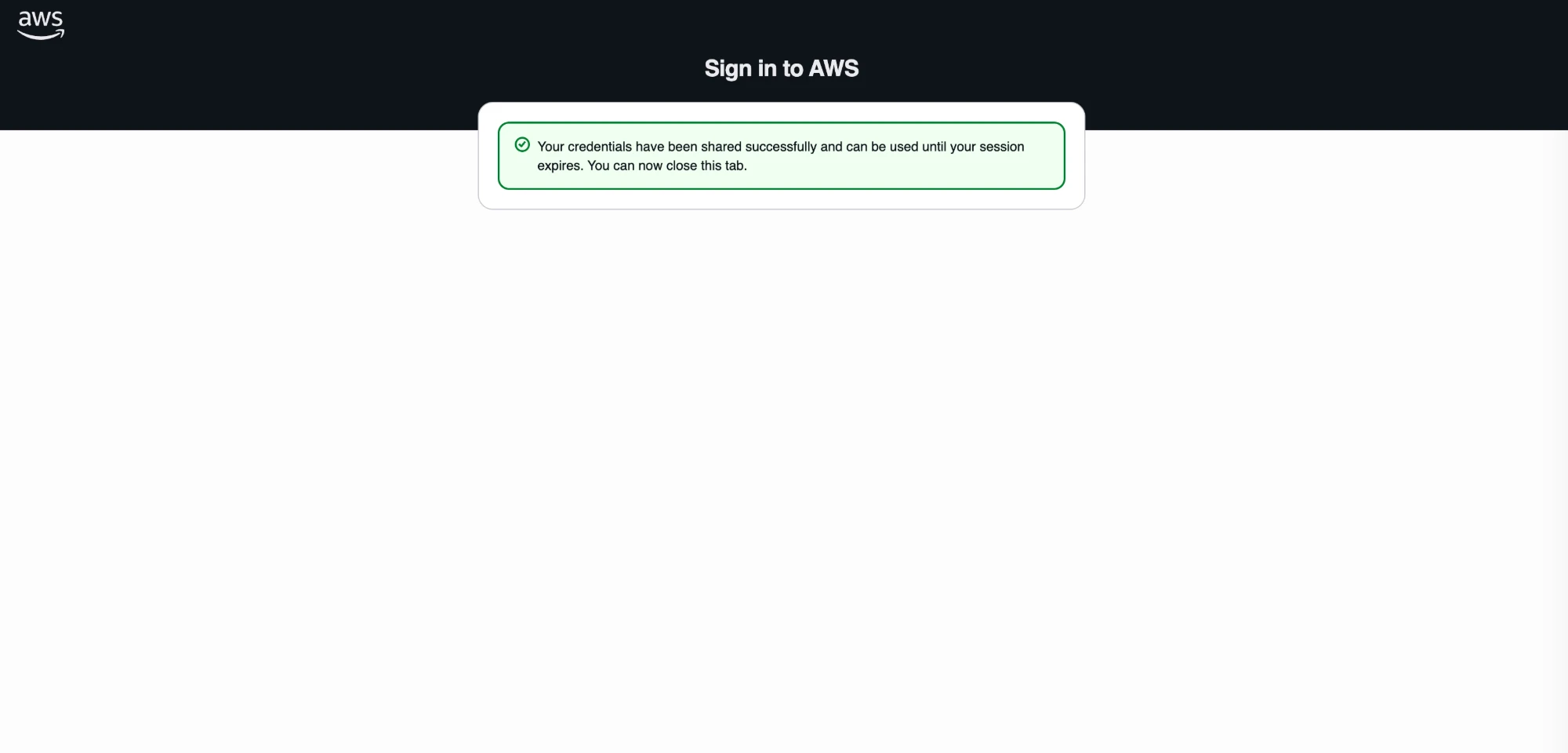
When you run the command in the terminal, a browser opens, and you sign in with the account you created in IAM Identity Center. One login stays valid for several hours up to a day. When it expires, just run it again.
Check that the AWS CLI works with the logged-in profile
Add the profile name to a command and see whether it actually goes through. Start with your own account (moobon) and confirm the command returns a result.
aws s3 ls --profile moobon
aws ec2 describe-instances --profile moobon
If you don't manage multiple accounts, you can write that configuration as
[default] and skip --profile entirely. On the other hand, if you switch between your own account and client accounts as in this article, it's safer to specify --profile explicitly to avoid mix-ups. In AI-driven development, if you note which profile to use in an instruction file such as CLAUDE.md, the AI will add --profile when running commands, so there's hardly anything to type by hand.aws sso login are in place, AI tools like Claude Code can use your company's AWS CLI. If you also manage other companies' (clients') accounts, you add AssumeRole (switch role) as described in the next section.7. Managing Clients with AssumeRole: A Win-Win for Both Sides
From here on, we cover managing other companies' (clients') accounts. One option is to have each client set up Organizations and Identity Center and create an SSO user for MOOBON there. But asking every client to build and run that isn't realistic, and on our side we'd end up juggling a separate login for every client. That's where AssumeRole (switch role) comes in. It has the following advantages:
- Minimal effort for the client: no need to build Identity Center. They just need to add one "role that trusts MOOBON."
- You keep a single identity: you simply switch on the spot from your already-logged-in MOOBON identity. No separate login per client.
This setup not only keeps the burden on clients small, it also makes our own day-to-day operations much easier. We no longer need to manage a username × password × two-factor authentication for every client as we did before, and with everything consolidated into a single entry point, both using the AWS CLI and signing in to the AWS console become much simpler and easier to handle.
Now, let's move on to the configuration.
① Create a dedicated role on the client side
With the client's consent, create a MoobonAdmin role in their account. The key is the trust policy. By stating "allow the role to be assumed (sts:AssumeRole) from the MOOBON account," you can switch into it without handing over any keys. Save the following as trust-policy.json.
{
  "Version": "2012-10-17",
  "Statement": [
    {
      "Effect": "Allow",
      "Principal": { "AWS": "arn:aws:iam::<MOOBON_ACCOUNT_ID>:root" },
      "Action": "sts:AssumeRole"
    }
  ]
}
Create the role with this policy and grant it permissions (AdministratorAccess in this example). Run this just once in the client's account, using temporary admin permissions.
# run once in the client's account (with temporary admin permissions)
aws iam create-role \
  --role-name MoobonAdmin \
  --assume-role-policy-document file://trust-policy.json

aws iam attach-role-policy \
  --role-name MoobonAdmin \
  --policy-arn arn:aws:iam::aws:policy/AdministratorAccess
Specifying the MOOBON account's root as the Principal means trusting "anyone in the MOOBON account" and delegating the decision of who can actually assume the role to MOOBON's own permission settings (the SSO Permission Set). As long as the Permission Set from the prerequisites allows sts:AssumeRole, the switch will go through.
We attach
AdministratorAccess here for clarity, but in real operations it's better to limit it to only what your scope of work requires. The trust policy (who can assume the role) and the permissions policy (what it can do) are separate, so you can swap out just the permissions later.② Add client profiles to ~/.aws/config
Add the ARN of the role you created to the ~/.aws/config from Section 5 as a switch-target profile.
# append to ~/.aws/config
# one per client (switch target). the number in role_arn is that client's account ID.
[profile clienta]
role_arn = arn:aws:iam::<CLIENT_ACCOUNT_ID>:role/MoobonAdmin
source_profile = moobon
region = ap-northeast-1

# [profile clientb] ... add your other clients the same way
The key is source_profile = moobon. This means "switch using the MOOBON identity." To add more clients, just add the same block.
③ Switch and operate
From there, just add the client's profile name to your CLI commands. The temporary credentials for the target account are used automatically.
aws s3 ls --profile clienta
aws ec2 describe-instances --profile clienta
8. Signing In to the AWS Console with AssumeRole
Beyond the AWS CLI, there are times when you want to open a client's console in the browser. AssumeRole doesn't make the client part of your organization, so the client's AWS account won't appear as an option on the SSO login page. It's easy to assume you simply can't sign in to their console, but in fact you can switch and open the console right from your MOOBON SSO session. It's handy to set up a helper that generates a sign-in URL from the temporary credentials obtained by switching. Save the following as ~/bin/aws-console.
#!/usr/bin/env bash
# usage: aws-console <profile-name>   e.g. aws-console clienta
set -euo pipefail
PROFILE="${1:?specify a profile name}"

# prompt for SSO login if the token has expired
aws sts get-caller-identity --profile "$PROFILE" >/dev/null 2>&1 \
  || aws sso login --profile moobon

# extract the target's temporary credentials and build the session JSON for federation
# (--format process outputs JSON; a single python3 call parses it and URL-encodes it)
CREDS=$(aws configure export-credentials --profile "$PROFILE" --format process)
SESSION=$(echo "$CREDS" | python3 -c '
import sys, json, urllib.parse
d = json.load(sys.stdin)
print(urllib.parse.quote(json.dumps({
    "sessionId": d["AccessKeyId"],
    "sessionKey": d["SecretAccessKey"],
    "sessionToken": d["SessionToken"]
})))
')

# get a federation sign-in token -> build the login URL and open it
TOKEN=$(curl -s "https://signin.aws.amazon.com/federation?Action=getSigninToken&Session=$SESSION" \
  | python3 -c 'import sys,json;print(json.load(sys.stdin)["SigninToken"])')
DEST=$(python3 -c "import urllib.parse;print(urllib.parse.quote('https://ap-northeast-1.console.aws.amazon.com/'))")
URL="https://signin.aws.amazon.com/federation?Action=login&Issuer=moobon&Destination=$DEST&SigninToken=$TOKEN"
echo "$URL"; open "$URL" 2>/dev/null || true
chmod +x ~/bin/aws-console aws-console clienta # -> opens Client A's console in the browser (valid for about an hour)
Before, every time we wanted to look at a client's AWS console, we had to sign out of the current console (or reopen it in incognito mode), open a different IAM sign-in page for each client, enter a username and password, get through two-factor authentication, and only then could we finally switch to that account's console.
Now it's just one command. You literally type aws-console clienta, the browser opens automatically, and the console comes up already signed in to the target client's AWS account.
Afterword
This originally started as an effort to revisit our security as a team that builds with AI as a given. But as we went along, we ended up adopting an approach that, unexpectedly, made our day-to-day operations easier too. At the root of this overhaul is a single principle: "never leave a permanent key anywhere." In teams that develop and operate with AI holding powerful permissions, the damage if a long-term key on someone's PC gets exfiltrated through some unexpected path is large, and hard to notice. What's more, risks like these can't be fully prevented by relying solely on individual vigilance or operational rules. Rather than leaving it up to how each engineer works, we concluded the only real fix is to solve it through the system itself. That's why we rebuilt things so that identity is consolidated into one, and we switch into each account with temporary credentials that expire within hours. It's safer, and day-to-day work actually got easier. A client's console opens with a single command, and both the blast radius of a leak and the hassle of offboarding or reassignment are smaller.
We believe AI adoption and security aren't at odds; they can coexist through how you design the underlying plumbing. For consultations on AWS operational design, access management, or cost reviews, feel free to reach out via our AWS Cost Analysis Tool or at info@moobon.jp.
Frequently Asked Questions
QDoesn't switching to SSO + switch role make day-to-day work more tedious?
It barely adds any steps to your daily routine. When the token expires, you just run `aws sso login --profile moobon` about once a day, and after that you can operate any account by adding `--profile <client-name>` to your CLI commands. If anything, management gets lighter overall, since you no longer have to issue, store, and revoke keys for every client.
QCan't MFA be enforced on the target role instead?
For switches originating from an SSO session, adding `aws:MultiFactorAuthPresent` to the role's trust policy doesn't work as you'd expect. So we enforce MFA at the entry point (the MOOBON SSO login). Since you can only switch from an identity that has already passed MFA, every access ends up going through MFA.
QDo client accounts need to be brought into MOOBON's organization (Organizations)?
No. Each client's account stays independent (and each company keeps its own billing). All that's needed is a single role in that account (e.g., MoobonAdmin) with a trust setting that allows it to be assumed from MOOBON's account. No key handoff, and no joining our organization.
Q"Switch role" in the console throws an error. Is my configuration wrong?
It's not a misconfiguration; it's by design. The "Switch role" UI at the top right of the console can't be used from a session signed in via SSO (even with correct input, you'll get an "invalid field" error). Set up a helper that generates a sign-in URL from your SSO session's temporary credentials, and open the console from there instead (see Section 8).
QWhat should I do with my existing long-term access keys (AKIA…)?
Once you've confirmed you can operate each account with the new approach, delete that client's long-term IAM keys and remove them from `~/.aws/credentials` as well. As a rule, don't create any new long-term keys.